
Recently we have been dealing quite a lot with installations of a revolutionary product called Elasticsearch, this product sounds like a completely unknown product to most users in the Israeli community, but because of its excellent capabilities we thought it worth writing a separate article about it, thereby increasing its use.
In the next article I will present the advantages and disadvantages of using Elasticsearch compared to using the standard WordPress search.
I will explain how the Elasticsearch server installation process works and how you can easily configure the integration with the WordPress system.

What is Elasticsearch, anyway?
Elasticsearch is an advanced open-source search engine (machine \ server) developed in JAVA, and it is actually used to store textual information (products, posts, categories, tags, etc.).
The tool enables searching and analyzing data of any kind (textual, numeric and geographic), either schematic (with an orderly structure within some database) or non-schematic (scattered and distributed across content within a given system without any agreed hierarchy).
Elasticsearch is known for its REST API, which is relatively simple and convenient to implement. And due to the impressive performance that it displays relative to any other search engine that does not search the way it does (in a way that is flexible to expansion in terms of resources and growth of its data index, in terms of the AI system that knows how to learn on its own according to a recurring pattern, and in terms of the peak speed of executing search queries).
Elasticsearch is the central and most popular of the analysis and data-analytics tools from Elastic, accompanied by the Logstash and Kibana tools for log and data analysis and data visualization on graphs.
Worldwide, the combination of these three tools is called ELK (in Hebrew – the "Elastic Stack"):
- Elasticsearch
- Logstatch
- Kibana
When is it recommended to use Elasticsearch?
So when does using Elasticsearch actually become worthwhile and recommended? As a rule, using it is recommended for content-rich sites, such as news sites and blogs with more than 5K posts, or alternatively online stores (Ecommerce sites) or custom Web systems that contain at least 2K products \ a lot of filtering data (categories, tags of every kind).
On sites of this kind, a regular search in the WordPress system, or in any other system they are based on, may take a long time and on average takes several seconds (which is a lot in terms of the run time of a database query) to return an answer to a standard search query by name.
For example, in WordPress the search is performed by a Select query on the MySQL database. For the purposes of this article's demonstration, we set up at uPress a WordPress site containing 100K posts with varying content; a standard search query (by string) on the WordPress site took more than 6.5 seconds.
In Elasticsearch, by contrast, such a query is defined as the simplest possible; the answer will return in under 0.5 seconds, and even much faster in some cases.
This is the reason that many owners of content-rich and popular sites decided to implement this search engine. The big advantage is that this engine is easy to implement, and delivers amazing results.
Performance review – Elasticsearch vs. standard WordPress search
For this article we set up a WordPress site here at uPress and inserted about 100,000 posts with varying content (different words from different results on the web). Of course, all the information is stored as posts in a database that weighs 680MB.
 Original Hebrew WordPress interface. Follow the English instructions in this article; labels and positions may differ in newer versions.
To compare query performance we used a WordPress plugin called Query Monitor.
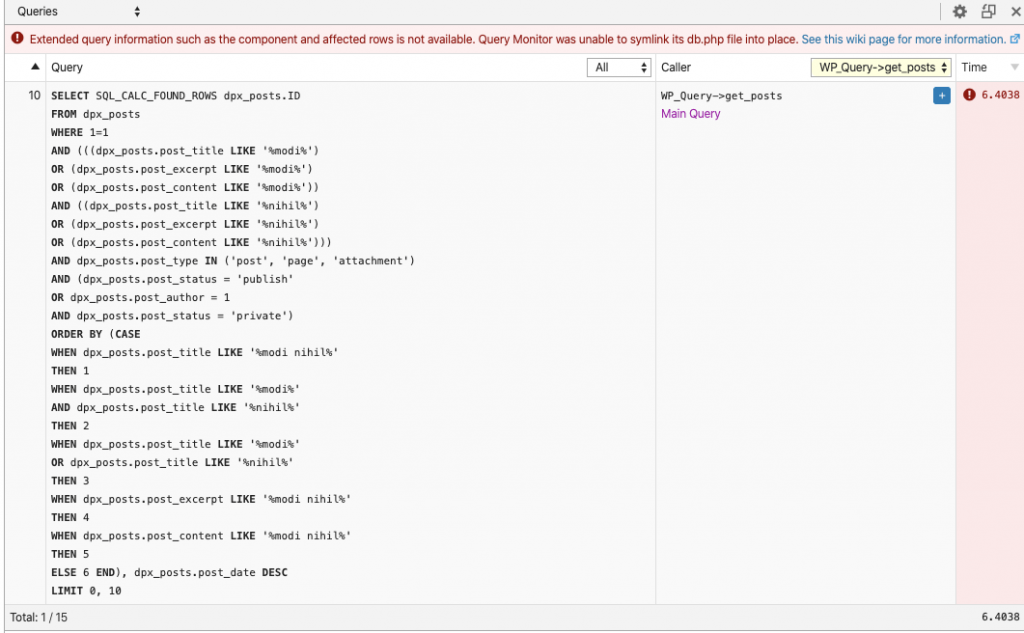
The first query is a search query in the standard WordPress search engine, a string (phrase) search query, 2 words:
 Original browser developer-console example used by this article. Interface labels may differ in your browser.
6.4038 seconds for a search result output

7.18 seconds full browser load time including the theme and plugins, without a caching plugin.
The following query is an identical search query in the Elasticsearch search engine (on an external server), so the query is not defined as a Query but as an Http request to an external server.
In this case too, it is a string (phrase) search query, 2 words:

0.2559 seconds for a search result output

1.16 seconds of full browser load time including the theme and plugins, without a caching plugin.
If we compare the 2 cases in percentages – it is a difference of 618%.
Of course, if we factor in a variety of additional search parameters (filtering by dates, filtering by post types, filtering by size / color / weight, filtering by author), we will see varied and diverse results that differ from the current result.
From this basic test we can conclude that using Elasticsearch dramatically improved the way search is processed and the search query results are displayed. Therefore, if your site meets the parameters we recommended at the top of this article (a content-heavy site) and you are looking for a quick way to improve query speed for your visitors, this is a great solution and we recommend it.
How do you install Elasticsearch?
In truth, until now installing Elasticsearch required extensive technical knowledge and familiarity with the Linux world.
For the purpose of this article, I installed ElasticSearch on a server running the Booting control panel.
The Booting management panel is a revolutionary management interface designed for managing servers without technical knowledge. The interface was developed by our group over the past year and offers a variety of options for the user and an exceptional user experience, the likes of which has not been seen before, for managing any website or web system whatsoever.
Booting is the last word in server management for websites and complex cloud applications, and we invested in developing it the best of the knowledge and experience we have accumulated in the field over the years. We bundled into it a wide range of unique features that cannot be found in other popular management interfaces – together with the familiar options of web server management interfaces, and thus we created a perfect product for managing and maintaining websites that can be installed on any server anywhere you choose, without extensive technical knowledge in server management, all in a simple and friendly way.
Installation process
The installation is divided into 2 stages: the first stage is performed at the level of the Elasticsearch search engine, and the second stage is performed at the level of our WordPress site (by a plugin).
at the search engine level
In the first step, we will connect to Booting with a user that has permissions for the Services area on the server.
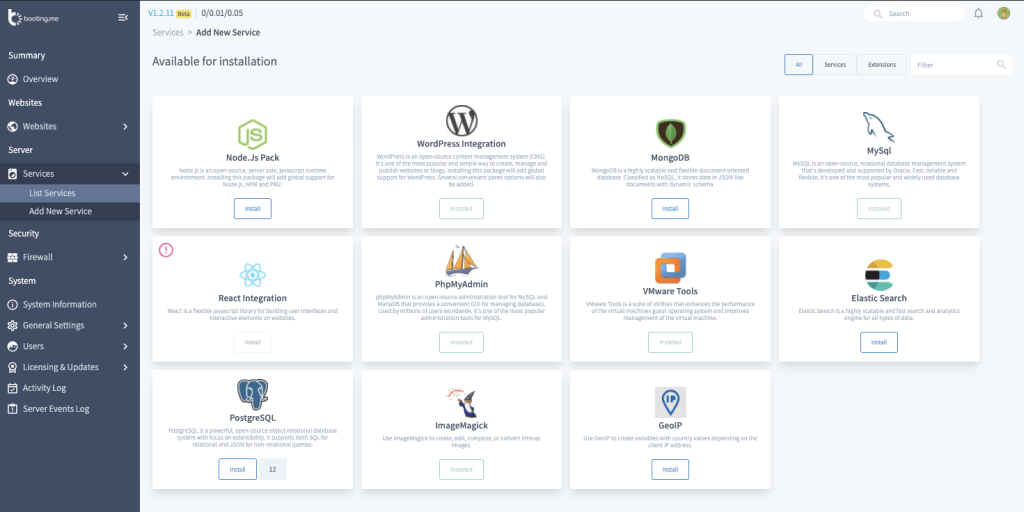
In the menu on the left side we'll click on Services, and then on Add New Service.
Now, an extensive list of services will open before us that we can install on our server with one click.
We will of course choose Elasticsearch and click Install.
 Original Hebrew uPress control panel. Follow the English instructions in this article; labels and positions may differ in the current interface.

In the second step, we will configure the Elasticsearch service itself by going to the side menu, General Settings, and then Extensions Settings.
Under the Discovery setting we choose Public And Local (so that we can index data from a server external to our Elasticsearch) and click the Update Settings button, of course.
Since that our Booting server serves as a remote server (there is a WordPress site on which the site files and the database reside, and the booting server I created is a server of its own), so that the servers can communicate with each other we will open port 9200 (the port Elasticsearch works with by default) in the firewall of our Booting server.
By going to the Firewall tab and then clicking the Add New Port button, on the screen (bottom right), we will add port 9200, then click Add, and approve the communication for UDP_IN. (We are allowing the server to receive requests from other servers on port 9200).

This is how it should look after the setup
at the WordPress site level
There are several WordPress plugins that will help us interface with our Elasticsearch server. The plugin we chose to work with is a plugin found in the official WordPress plugin directory, called ElasticPress.
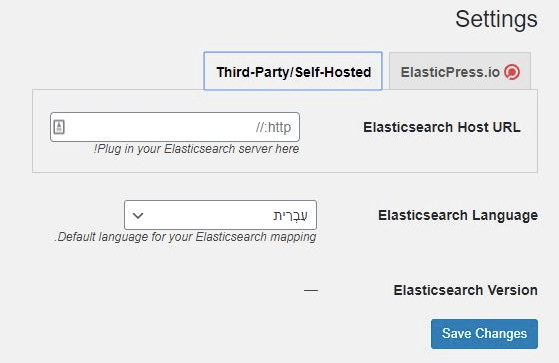
After installing the plugin on your WordPress site, go to the settings (a new menu that is created called ElasticPress), and go to the Third-Party/Self-Hosted tab.
 Original Hebrew WordPress interface. Follow the English instructions in this article; labels and positions may differ in newer versions.
In this tab we will essentially define the details of our server, the server's URL (together with the port), and save the settings.
If the connection was made successfully – you will receive a corresponding indication, and you can move on to the screen where you choose which post types to sync to the Elasticsearch server.
Once the synchronization process to the server serving as the search engine begins, it will look like this:

Also, in the Booting server on the Elasticsearch settings page you can see the information located in the search engine in the dedicated place (this way you will know that a proper connection exists between the 2 servers):

In summary
I hope I managed to put the subject of Elasticsearch in order and to simplify the installation process as much as possible. If you are at the point where you want to improve your site's speed in terms of search queries / filtering – this article opens the door for you to a new and powerful technology that will improve the search speed on your site by hundreds of percent!
I hope you found this guide useful. Do you have additional tips or questions on the subject that you would like to share? I would love to hear.