
Every time a new WordPress version is released, we receive emails from users asking "is it safe to update their WordPress site". Are you wondering why you should update? Interested in the pros and cons of updating? In this article we will explain the great importance of updating your site to the latest version of WordPress, and we will also mention several methods for the update procedure.
WordPress is a free content management system developed by a community of programmers. With every version release, WordPress fixes bugs, adds new features, improves performance and enhances existing features in order to stay up to date with technology standards.
In other words, if you avoid updating your WordPress site, you endanger your site's security and miss out on new features and updates.
Now let's take a look at the pros and cons of updating WordPress.
1. Security
Security is probably the most important reason why you should keep your WordPress site up to date.
Today, about 23% of websites worldwide are based on WordPress. Because of its enormous popularity, WordPress is also a popular target for hackers, distributors of malicious code, information thieves, and so on.
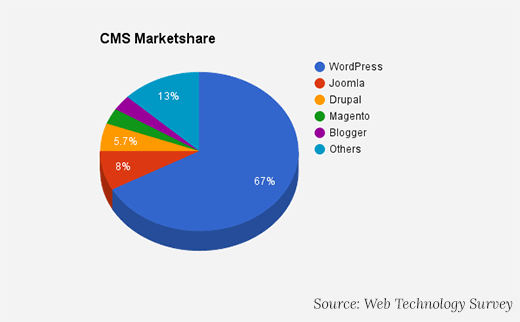
Content management systems market
Since WordPress is open source, anyone can study the code and improve it. However, this also means that hackers can study it and find ways to break into sites.
The positive part of the story is that not all hackers are malicious. In fact, there are more good hackers than bad ones, so security experts around the world can study the code and report bugs / fixes in the security features. Every time a security report is submitted, the WordPress core team works diligently to release an updated and fixed version.
This means that if you use an outdated version of WordPress, you are actually using a version that is more exposed tosecurity vulnerabilities. Hackers can find sites running an outdated WordPress version and turn you into victims of a sophisticated attack.
Not only WordPress itself, but also plugins can be used by hackers. You must make sure that your site has the plugins, themes and WordPress version installed in their most up-to-date version.
2. New features
Every major release of a WordPress version comes with new features and changes to the software. For example, WordPress 4.0 came with an improved plugin installation experience, 4.1 introduced in-line image editing, and 4.2 came with faster plugin updates.
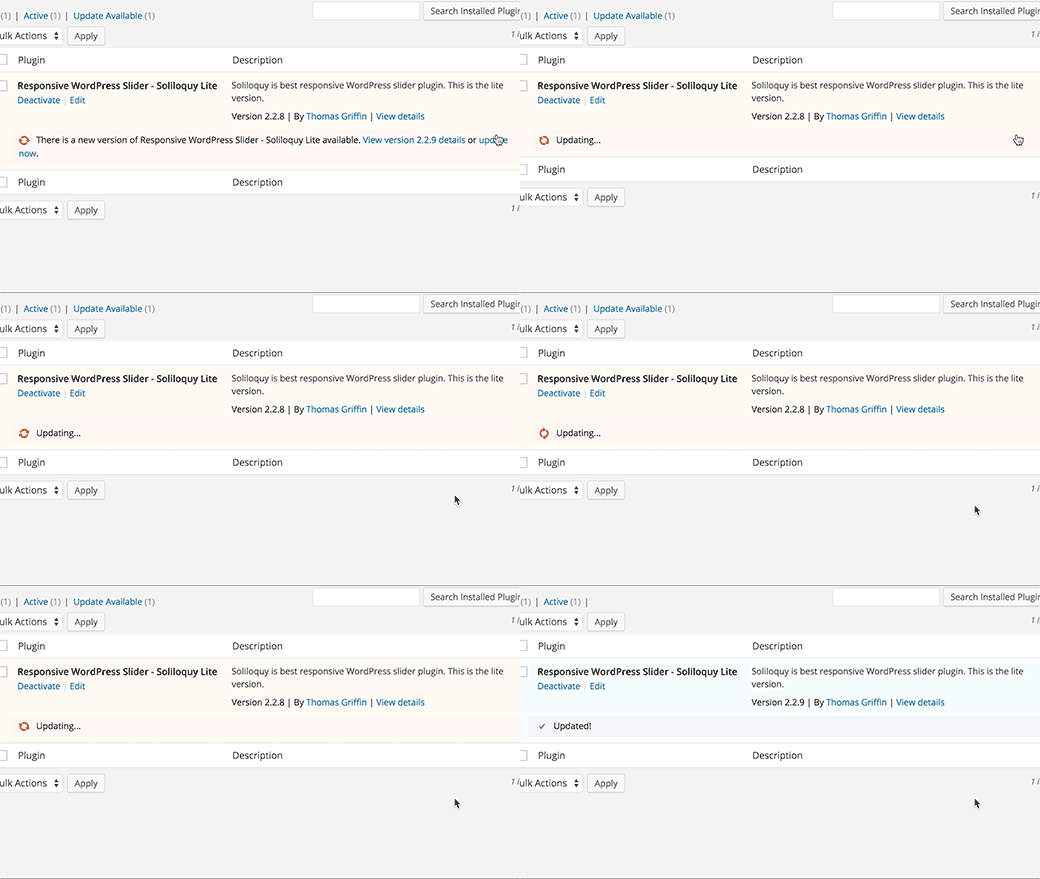
WordPress version 4.2 came with faster plugin updates
If you used an older WordPress version, your WordPress experience will be completely different from that of someone who has the most up-to-date version.
You may run into difficulty getting WordPress online help because you are using an old version, while people in the WordPress support groups will assume you are using the latest version.
3. Performance improvement
Every new WordPress version has improved performance
WordPress developers are constantly trying to make their site performance faster. Each new version comes with several performance improvements that make WordPress run faster and more efficiently.
For example, WordPress 4.2 improved JavaScript performance for navigation menus, while WordPress 4.1 improved complex queries that helped the performance of sites that used those queries.
Since speed is a critically important factor in SEO, it is recommended to keep WordPress updated to ensure maximum performance.
4. Bug fixes

Older WordPress versions may "suffer" from bugs
Despite the thorough testing every WordPress version goes through before its release, small bugs that managed to "slip through" the testing may remain. For this reason, they are careful to issue smaller WordPress releases (which get a version number in the format X.X.X) in an attempt to overcome those as well. For example, the latest version of WordPress, 4.2.3, included fixes for 20 bugs from version 4.2.
If you go to ask for help in the WordPress support groups, the first advice you will get will be to update the version, which may immediately solve the problem. If you insist on not updating WordPress, you will not be able to continue receiving assistance.
5. Matching the update to plugins and themes
Plugin and theme developers often coordinate their updates with WordPress version releases to ensure maximum use of the new features and improvements that have been introduced.
However, there are cases in which an update can "disconnect" plugins that exist on your site, if they do not conform to the recommended practices and coding standards.
For this reason, it is also important to back up your WordPress site often, especially before updating the WordPress version.
To sum up, the only drawback is that in a few rare cases your site will undergo a slight shock that will require a few fixes, but here are the advantages of updating:
- Enhanced WordPress security
- New and useful WordPress features
- A faster WordPress experience
- A bug-free WordPress site
- Better compatibility with themes and plugins
Now that you better understand the great importance of updating the WordPress version of your site on a regular basis, let's take a look at the update process itself.
How to keep your WordPress site up to date
Updating the site's core, plugins and themes every time a new WordPress version is released is a fairly simple process,
If you are a uPress customer:
After logging in to the admin panel » select your site » WordPress tab » Automatic update for WordPress.
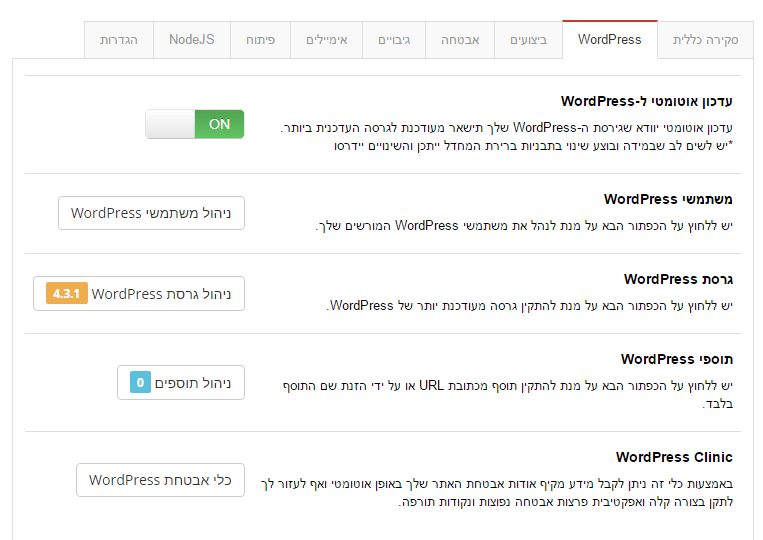 Original Hebrew uPress control panel. Follow the English instructions in this article; labels and positions may differ in the current interface.
Enabling automatic updates for WordPress through the uPress management panel
If you are not uPress customers, there are several different ways to do this:
WordPress comes with a built-in update notification system. It highlights the number of available updates every time you log in to your WordPress account.
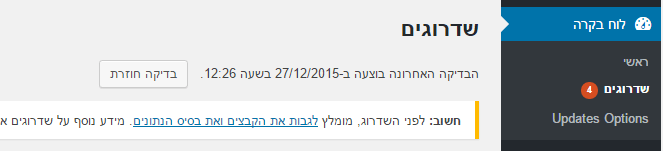 Original Hebrew WordPress interface. Follow the English instructions in this article; labels and positions may differ in newer versions.
WordPress updates screen
All you need to do is go toDashboard » Upgrades and install these updates. It is a one-click process.
They may not even know about new updates that have been released to the market. Fortunately, they have several options:
If you are using WordPress 3.7 or higher, you have automatic updates for minor releases (intended for security fixes and bugs). You can also enable automatic updates for larger update releases, plugins and themes.
Alternatively, you can receive an email that will notify you about a new update to your WordPress site.
Get email notifications about WordPress updates
While you are busy running your business, logging in to your site to check for updates will probably be the last thing on your mind. Wouldn't it be easier if you could get an email update every time a new update is released? Well, it is possible.
The first thing you need to do is install and activate the plugin WP Updates Notifier. After activation, go toSettings » Updates Notifier to configure the plugin settings.
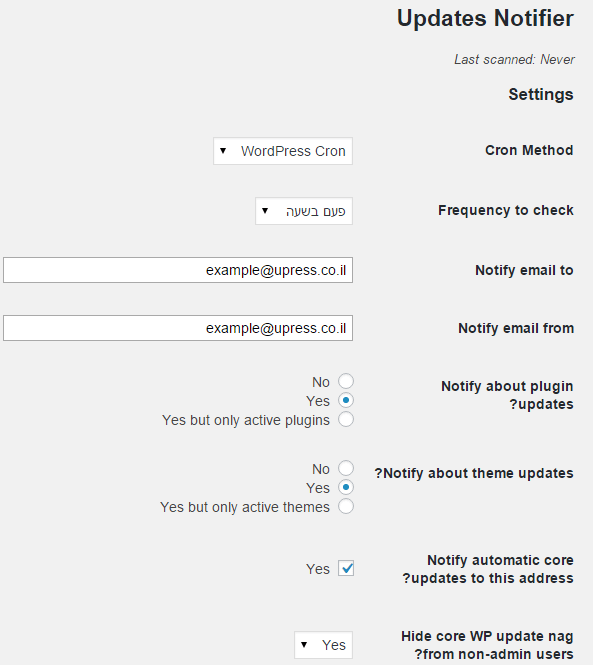
Settings of the WordPress Updates Notifier plugin
The plugin uses WordPress Cron to check for updates to your site every hour. When there is a new update, the plugin will send you a notification by email.
By default, the plugin checks for WordPress core, plugin and theme updates. All you have to do is click Save Setting with the test email button.
If you do not receive a test email from the plugin, try writing about it in a comment on this article and the uPress team will try to help you.
Automatic installation of WordPress updates
You can make the process even more automatic. WordPress lets you enable automatic updates for major releases of WordPress core, plugins and themes.
This option involves risk if you are not using a dedicated managed hosting server for WordPress sites. A dedicated managed hosting server for WordPress sites allows automatic updating of your site and guards against failure situations.
If you have enabled automatic updates, there is a slight risk of the site going down, and you will not be available to fix it immediately.
However, there are two ways to enable automatic updates: using a plugin, or using code.
Automatic updates using a plugin
First of all, you need to install and activate the plugin Easy Updates Manager. After activation, go to Dashboard » Upgrades to configure the plugin settings.
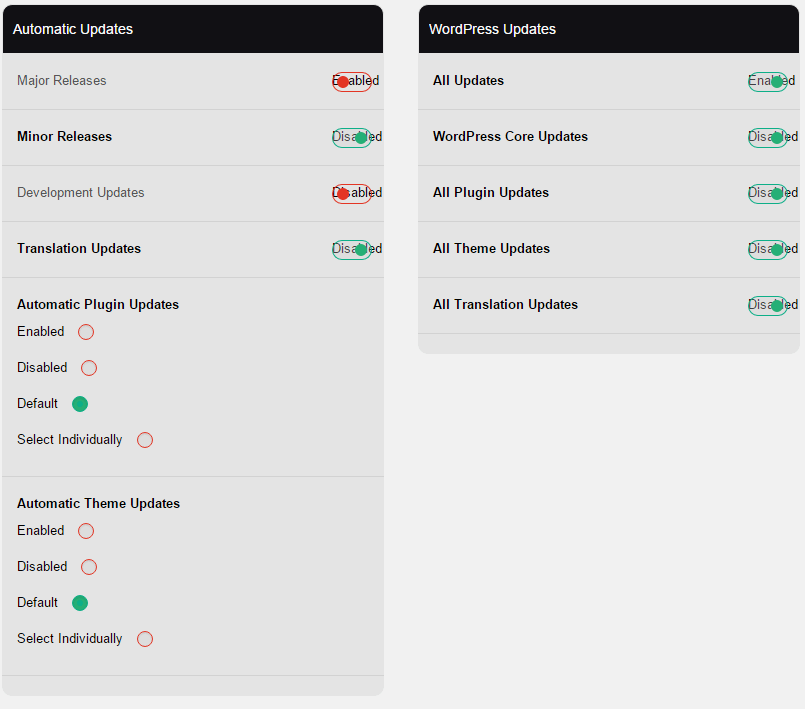
WordPress automatic updates settings
Now you need to scroll down the screen until you reach the Automatic Updates section, where you can enable automatic updates for the core, plugins, themes and translation files. Once you are done, save the settings.
Automatic updates via code (wp-config file)
You can enable automatic updates for the WordPress core by adding the following line to your wp-config.php file.
define('WP_AUTO_UPDATE_CORE', true);
If you want to enable automatic updates for your themes and plugins as well, you will need to add the following lines to the functions.php file of your theme, or to a specific plugin of the site.
add_filter( 'auto_update_plugin', '__return_true' );
add_filter( 'auto_update_theme', '__return_true' );
We hope this article helped you learn why you should always make sure your site is up to date with the latest WordPress version.
