We all love WordPress and the way it is used, but sometimes it can drive us crazy!
Sometimes it displays the White Screen Of Death, or an unidentified PHP error coming from a plugin or a server setting that makes your WordPress site crash – it is never nice.
In this article we tried to gather the most common WordPress errors and problems and to provide the solutions as we see them.
So without elaborating too much, let's start with the most common WordPress errors and problems.

1. Internal Server Error
Almost every WordPress user has run into an Internal Server Error at least once.
This is a rather annoying error because, unlike other WordPress errors, Internal Server Error does not tell you what you need to fix.
It can be frustrating because the problem can stem from several different and varied causes.
Possible causes of an INTERNAL SERVER ERROR, for example:
- Faulty WordPress plugin functions
- Faulty theme functions
- A corrupted .htaccess file (if your site runs on an Apache server)
- Utilizing the PHP memory limit
Possible solutions for INTERNAL SERVER ERROR:
This error can easily send beginner developers / site owners into a panic, but there is no need to worry – there are, after all, several solutions.
A. Editing the .htaccess file (if your site runs on an Apache server)
Since the Internal Server Error is most likely the result of a corrupted .htaccess file,
Connect to the home folder of your WordPress site via FTP or a file manager and rename the .htaccess file to the following name – .htaccess.old – then refresh your browser to check whether you have solved the problem.
If the error disappears, go to Settings > Permalinks > and click the save button to reset your .htaccess file and refresh the rewrite rules.
If that didn't work, you probably need to check your WordPress plugins.
b. Disable all WordPress plugins
If you recently installed a WordPress plugin, it is probably the cause of the problem, and that is great, because you know which plugin to turn off and remove from the system.
In other cases, the Internal Server Error can result from a very old WordPress plugin, or from a group of several plugins conflicting together.
The only way to make sure the problem does not come from one of your plugins is simply to turn them all off.
By the way, if we assume that you are experiencing an Internal Server Error, then you probably cannot access your WordPress admin, so how can you actually deactivate your plugins?
There are two methods to disable your WordPress plugins without accessing the WordPress admin: one requires you to use the FTP protocol, and the other requires you to use phpMyAdmin.
C. Replacing the theme
If the problem is not caused by your WordPress plugins, there is a chance the fault lies in your theme.
Switch and try using the Twenty Twelve theme, and refresh your browser.
If you still see the error, you may need to upgrade several folders on your WordPress site.
D. Fix the wp-admin and wp-includes folders
At this point, you should usually have already fixed the problem on your WordPress site. If that did not happen, try replacing your wp-includes folder and your wp-admin folder with newer versions from the most up-to-date WordPress installation.
E. Increase the PHP memory limit
If all the previous solutions have failed, you will have to get your hands dirty and start dealing with a number of settings on your server side.
In the home folder of your WordPress site, navigate to the wp-admin folder, then look for the php.ini file. If it exists, try editing it; otherwise, you will need to create a new file.
After creating it, edit the file and add the following line of code to it:
memory_limit = 256M
If increasing your PHP memory limit solved the problem, contact your hosting company so that it can run a deeper investigation into the element that consumes a lot of memory.
It could be anything, from a misspelled function name to a WordPress plugin written with faulty code; your hosting company will get back to you with an answer after checking the PHP error logs of your WordPress site.
If you have access to the control panel, you can try to check the PHP error logs yourself (for advanced users)

2. Automatic update failed
WordPress now comes with an automatic update feature that takes care of security, small bug fixes and things of that kind.
This feature is definitely essential, but sometimes it fails.
If we consider that the automatic update feature requires no human input, how will we know when our problem stems from a failed update? We will see one of the following signs:
- PHP error message
- Blank white screen (also known as the white screen of death – WSOD)
- a warning saying that the update failed
The possible reasons for a failed update:
- Internet connection problems during the automatic update
- Error communicating with the main WordPress core files
- Incorrect file permissions
- Exceeding your hosting plan limit
Possible solutions for a failed update:
- Update your WordPress site manually. If you don't know how to start, please visit the following article on updating WordPress manually, written in the WordPress Codex Updating WordPress manually written in the WordPress Codex.
- If our hosting package has used the maximum disk space allocated to it, then with some hosting companies this phenomenon can occur because your WordPress cannot write files to the server's hard drive.

3. WordPress Syntax error
From our experience as a hosting company specializing in WordPress sites, we found that this is a very common error among users who add code snippets to their WordPress site.
When you run into this error, you will usually receive a message that looks like this:
Parse error - syntax error, unexpected $end in /public_html/your_site/wp-content/themes/your-theme/functions.php on line 38
This error usually doesn't stress us out as users, because it points us exactly to the file and the line where the problem is.
Possible causes of the WordPress SYNTAX error:
In most cases, a Syntax error is caused by missing or unexpected characters in the problematic file.
Most often this happens when someone less experienced makes some edit to the code of the theme or of a WordPress plugin on our site, but this error can also occur following the installation of a new WordPress theme or plugin that contains an error.
The solution to the WordPress SYNTAX error:
A. Fix the faulty code snippet. If the WordPress error appears after updating a plugin, a theme, or manually embedding a code snippet on the site, you know exactly where to go to fix the error.
The real problem is when you cannot find your code snippet under the WordPress dashboard > Appearance > Editor (or Plugins > Editor, in the case of a plugin) because the WordPress error got you thrown out of your site.
This is undoubtedly an unpleasant situation for most beginners, but there is no reason to panic. You can edit your WordPress files through the FTP protocol, or through a file manager in your hosting server's management panel.
Find your faulty file (the exact path and line are provided in the error message), and fix the code snippet by removing it or rewriting it correctly.
B. Try switching the theme or the plugin
If the error started when you activated a new theme or plugin, it most likely comes from them.
Therefore, you will want to look for another alternative to the specific product you need, or contact the product's author to let them know and try to resolve the issue.
In some cases you will not be able to log in to your WordPress site, so you can connect to the site via the FTP protocol or through a file manager and delete the new plugin or theme.
C. Try to enable short open tags
If everything looks fine, there is another option for dealing with the problem: it may be that whoever added the PHP code in the plugin or theme used the short PHP opening tag instead of
In that case, you need to set the following code snippet in the php.ini file located in the home folder of your WordPress site:
short_open_tag = On

4. Error Establishing A Database Connection (database connection error)
A database connection error, exactly as the error title says, is fairly self-explanatory. The error lets us know that something has broken in the communication between our site and the WordPress database.
The possible reasons for a database connection error:
- Error in the wp-config.php settings file
- Problems with your hosting provider
- The site has already been hacked!
The solution to the database connection error:
a. Editing the wp-config.php configuration file
Edit the WordPress configuration file located in the home folder of your WordPress site; you can edit the file via the FTP protocol or through a file manager.
Make sure that the host name, table name, username and database password are indeed correct. They should look like this:
define('DB_NAME', 'dbname');
define('DB_USER', 'dbusername');
define('DB_PASSWORD', 'dbpass');
define('DB_HOST', 'localhost');
Solution for uPress customers:
You can edit the database password and specify (using a checkbox) that the new database details will be set automatically in your WordPress site's configuration file (wp-config.php).
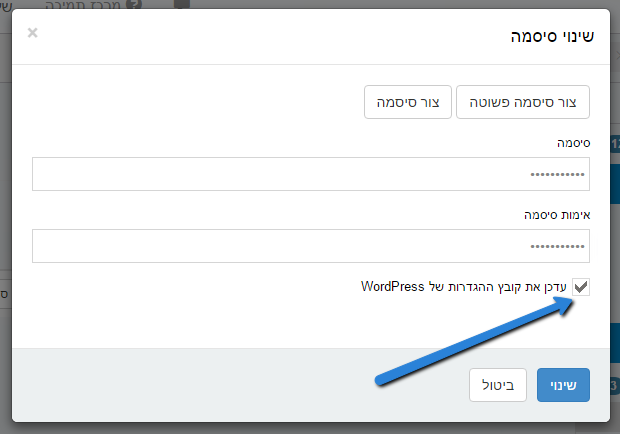 Original Hebrew WordPress interface. Follow the English instructions in this article; labels and positions may differ in newer versions.
B. Contact your hosting company
If all the details in your wp-config.php settings file look correct, you can try contacting your hosting provider.
They can tell you whether your server is down or your database has crashed due to exceeding the quota of your hosting plan.
If they tell you that everything looks good on their end, it is time to implement your security capabilities on your WordPress site.
C. Run a security scan
At any given time, anyone can fall victim to hackers and site breaches, especially if you don't know how to secure your WordPress site.
To make sure your site has not been hacked, please run a security scan with tools such as Sucuri, if you came across bad news – stay calm.
You can clean up security vulnerabilities on your site with the security tool provided by uPress WordPress Clinic.
If you have come across good news, it is always a good idea to strengthen your security – read the following article we wrote on the subject – 4 simple ways to secure your WordPress site.

5. Briefly unavailable for scheduled maintenance
3, 2, 1… break time is over, let's try to understand what causes the following error to appear.
This error shouldn't worry you, because its solution is quite simple. But first, let's try to understand why it was caused.
Possible causes of the maintenance work error:
- The WordPress update failed due to a factor outside your control
- The .maintenance file is not deleted after the update finishes, for some reason
The solution to the maintenance work error:
- Update your WordPress site manually
- Go to the home directory of your WordPress site via FTP, or through a file manager, and delete the .maintenance file
Solution for uPress customers:
You can disable WordPress maintenance mode by clicking the "Run Maintenance Mode Removal" located under the Development > Additional Hosting Tools tab.
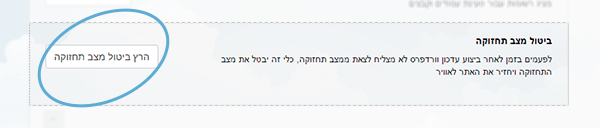 Original Hebrew uPress control panel. Follow the English instructions in this article; labels and positions may differ in the current interface.
Isn't it great fun to solve problems yourselves when they pop up? Let's move on to the next problem.

6. HTTP Error 403 – Forbidden
If you get the following error message when you try to access your WordPress site, welcome.
You have encountered one of the most common errors in WordPress. Let's understand what causes it.
Possible reasons for a 403 error:
- problems with the Indexes library when your host is a Windows server.
- the lack of indexing of the index.php file on Linux servers.
The solution to the 403 error:
You can easily solve this error: add the index.php file to the Indexes directory.
- On Windows servers – go to Control Panel > Network Options > the indexes directory, and add the file index.php.
- On Apache servers – go to the home folder of your WordPress site, create the .htaccess file and enter the following code snippet:
DirectoryIndex index.php

7. Post pages return a 404 error
It can be really annoying to enter the post pages of your WordPress site and get a 404 error (page not found) right in the face.
This problem usually occurs following a site migration between servers, or following installation of a plugin that affects the site's link structure (such as a bilingual plugin).
Possible causes of a 404 error:
- A problem with your permalink structure settings (Permalinks).
The possible solution for the 404 error:
A. Re-save your permalink structure
Luckily, this is a very easy WordPress error to fix, so there's no need to panic. Go to the WordPress dashboard > Settings > Permalink structure > click the button Save Changes.
b. Fix your .htacess file (on Apache-based servers)
If saving your link structure did not solve the problem, edit the .htaccess file manually.
Navigate to the home folder of your WordPress site and edit the file. If the file does not exist, create a new empty file and save it with this name, and add the following code snippet:
# BEGIN WordPress
RewriteEngine On
RewriteBase /
RewriteRule ^index.php$ – [L]
RewriteCond %{REQUEST_FILENAME} !-f
RewriteCond %{REQUEST_FILENAME} !-d
RewriteRule . /index.php [L]
# END WordPress

8. WordPress Memory Exhausted Error (maximum memory usage)
When you encounter this error, you will usually get a blank white screen (WSOD) in the worst case, or the following message in the best case:
Fatal error: Allowed memory size of 33554432 bytes exhausted (tried to allocate 2348617 bytes) in /home/username/public_html/your_site/wp-includes/plugins.php on line 36
The possible reasons for a maximum memory usage error:
- A WordPress plugin or some code in the theme – devouring server memory excessively
A possible solution for the maximum memory usage error:
The simplest way to solve the error is simply to increase the accessible server memory.
To do so, open the wp-config.php settings file, located in the home directory of your WordPress site. You can edit the file using the FTP protocol or through a file manager, and add the following line of code to it:
define ('wp_memory_limit', '64M');

9. Connection Timed Out error
If you host your WordPress site on a shared server that is overloaded or isn't managed properly,
You will most likely see this error often. Here are the causes and solutions.
The possible causes of a CONNECTION TIMED OUT error:
- Heavy WordPress plugins that consume a lot of server resources
- Errors in the theme's functions or in WordPress plugins
- Exceeding PHP's maximum memory limit
Possible solutions for the CONNECTION TIMED OUT error:
- Deactivate the WordPress plugins you installed recently, or reset your plugins folder
- Increase the available PHP memory (see the example in section 8)
- If you were unable to reach a solution – switch your theme to Twenty Twelve in order to verify that the error is indeed not in your theme.

10. Password recovery doesn't work
Forgot the admin password of your WordPress site? This is indeed a very common problem.
If you tried using WordPress's password recovery option but you are not receiving the password reset link at your email address, it is time to roll up your sleeves.
By the way, of course, after you have made sure that the link you need did not arrive in the spam folder of your email software either.
Possible reasons for the error:
For some reason, your WordPress simply does not send you the email containing the password reset message. There can be several causes for this.
But the main problem is not that you are not receiving your password, but how you can reset your password quickly and easily. Here are a few solutions for this.
A possible solution to the error:
A. Reset your WordPress user password through phpMyAdmin. This is the more technical way, which requires some experience in the subject. Here is how to do it, step by step:
- Log in to the management panel of your hosting server (uPress/Cpanel/DirectAdmin) and navigate to phpMyAdmin under the Databases tab, or add the suffix /phpmyadmin to your site's address
- Choose the database linked to your WordPress site. You can verify this by opening the wp-config.php configuration file under your site's home directory.
- Navigate to the wp-users table and click Browse
- Go to the username you want to recover and click the "Edit" button
- Enter a new value (your new password) into user_pass
- Choose MD5 in the dropdown menu under the Function tab
- Click the GO button at the bottom of the page and save the changes.
B. Edit the functions.php file
This way is much less complicated; the functions.php file is responsible for quite a lot of actions that occur on your WordPress site. So if this error occurs again, you can do the following:
- Using FTP or the file manager, go to the home folder of your theme, “../wp-content/themes/yourtheme/” and edit the file functions.php
- Open the file with your text editor and add the following line of code:
wp_set_password('uPressNewPassword', 1); - Replace uPressNewPassword with the password you want. The digit (1) in the line of code is the ID of your username, as it appears in the wp_users table.
- Save the file, and wait a few minutes.
- After you manage to log in to your WordPress site, go back into the functions.php file and delete the line of code you added. Don't forget to save again after the fix.

11. Error 508 – Resource Limit Is Reached
If you host your WordPress site on a shared server that is overloaded or isn't managed properly,
You will probably see this error often. Here are the causes and solutions
Possible reasons for the error:
Maximum utilization of the site resources allocated to your WordPress site,
Some hosting companies limit the resources available for using the site,
Once you have used up these resources to the maximum – the gateway will close the option of using additional resources and will display this error.
A possible solution to the error:
contact the hosting company to find out whether the site is under load / whether it is a brute-force attack.
If the message appears intermittently, it is recommended to check with the hosting company about a permanent solution that will allow broader use of resources.

If you are a uPress customer, you have already moved forward several steps in solving the problem:
1. First, when we want to start fix errors In the first stage, it is recommended to disable all caching plugins, clear the cache, and enable WordPress's error display function.
It is precisely for this purpose that we developed the "Development mode" located in the management panel > under the Development tab – you are welcome to use this tool.
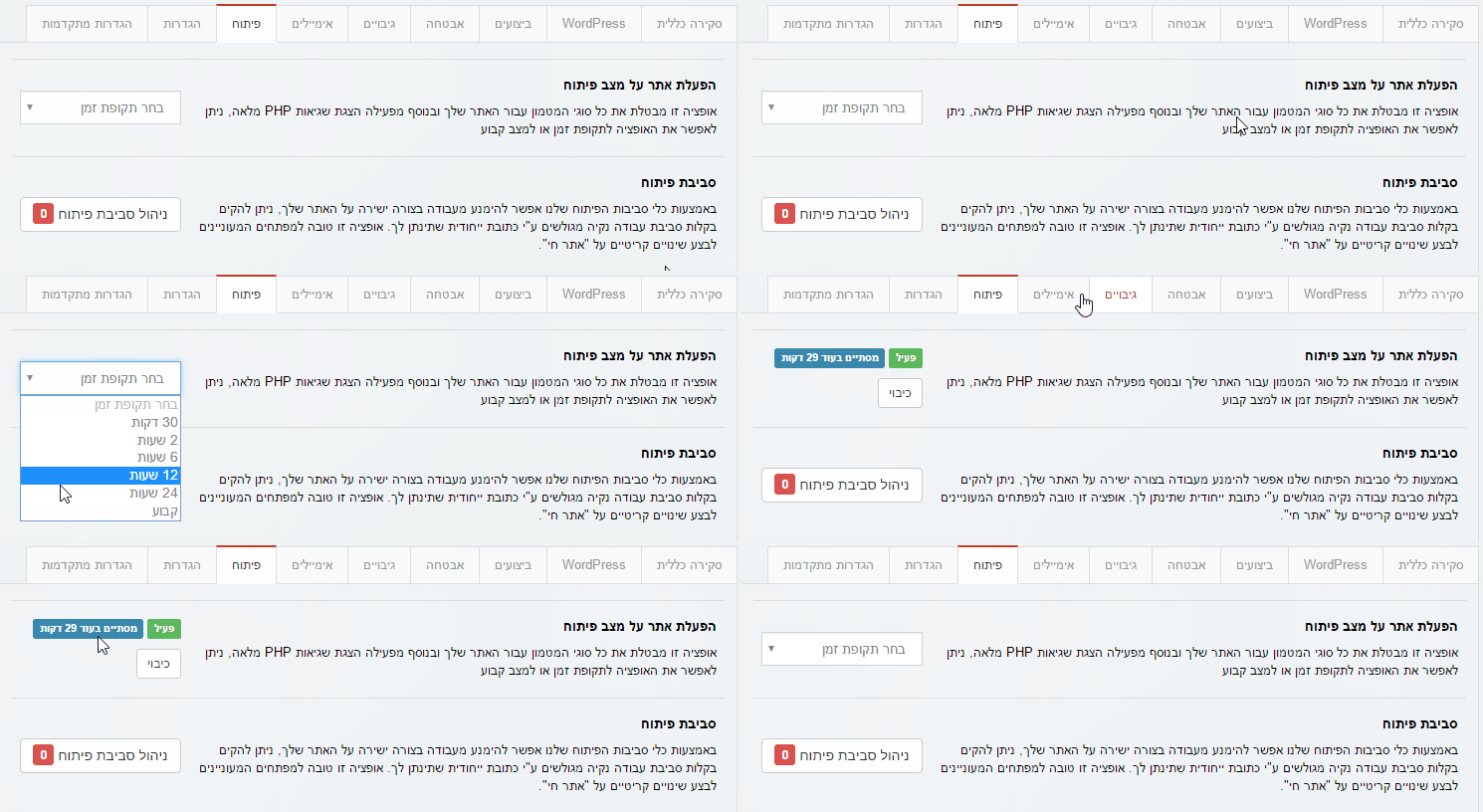 Original Hebrew uPress control panel. Follow the English instructions in this article; labels and positions may differ in the current interface.
2. If your WordPress installation is "broken" for any reason – all you need to do to provide an immediate solution is go to the admin panel > select the relevant site > WordPress tab > WordPress version management > Installing the latest WordPress base files.
The moment you click – the latest WordPress version will be downloaded, which will overwrite your existing installation files.
3. If you ran into a database connection error, you can edit the database password and set (using a checkbox) that the new database details will be configured automatically in your WordPress site's wp-config.php settings file (image attached).
Original Hebrew WordPress interface. Follow the English instructions in this article; labels and positions may differ in newer versions.
4. If you suspect that something suddenly happened to the site – it is recommended to go into to the WordPress security tools that we offer, and run a comprehensive security scan covering every aspect of the security of your WordPress site.
5. In order to avoid failed upgrades through your WordPress admin, it is much safer to perform the upgrades directly from our management panel, the action is performed through the server's Console, so you can rest easy that even if you lose your internet connection, the upgrade still won't fail / break and harm your site's availability.
