
Every time we access some domain address in our browser, for example upress.co.il,
the DNS servers in our region are responsible for Converting the domain address to the IP address of the hosting server on which the site sits.
To prevent our computer from accessing the DNS servers again and again and asking them the same question for the same domain address,
We have on our computer DNS caching mechanism that stores this information in the local memory its own (on the computer) for some time, so that if we accessed a certain domain address – the next time we access this domain address we automatically get a referral to the DNS servers defined in our computer's memory.
Sometimes, we make changes to the DNS records of domain addresses that belong to us,
and in these cases, we do not want to use the information stored in the cache of the DNS servers on our computer, but rather more up-to-date information.
Therefore, in such a case – if we want to speed up the process – we can clear the DNS servers' cache on our computer on our own.
Important to remember: in any case, Even if we do not do this – the DNS servers on our computer are updated automatically from time to time.
To do this we need to delete the information stored in the memory of the DNS servers, so that the next time we access the domain address, the DNS servers will serve us the most up-to-date information.
Performing the action
For the demonstration, we will use the domain upress.co.il.
In the first step, open the "the Command Prompt" (the black screen) on your computer called "Command Prompt" or in short CMD.
After we have opened the command line, first we will check to which IP address our site points to (where our computer arrives).
To do so, we will type the following command:
ping upress.co.il
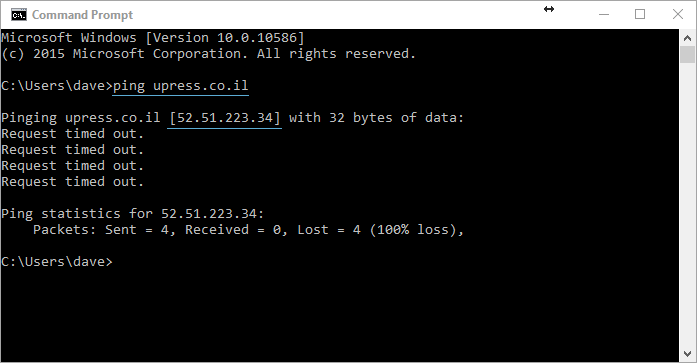
Now we can notice that when we run the command, we get that the domain address upress.co.il points to the IP address 52.51.223.34, and this is the data we are trying to obtain.
Clearing the DNS servers' cache
At this stage, suppose the IP address we obtained is outdated and the site now points to a different IP address, so we need to clear the cache of the DNS servers that store, on our computer, the information that upress.co.il points to 52.51.223.34.
We therefore need to clear the cache of the DNS servers that store information on our computer saying that the address upress.co.il points to 52.51.223.34.
To perform the action we will need to enter the command:
ipconfig /flushdns
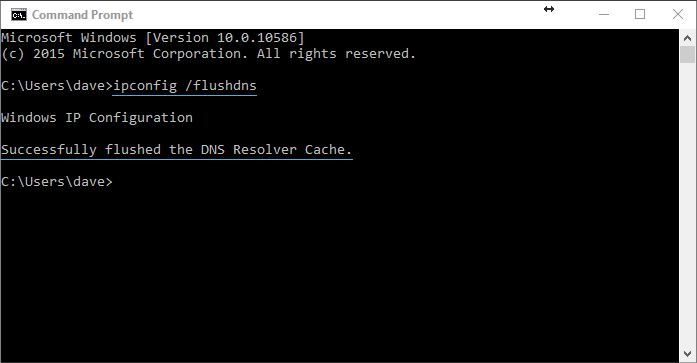
Now we can see that we received the response Successfully flushed the DNS Resolver Cache, and that is exactly the answer we want to get.
Note: if we did not receive this response, it means we did not type the command accurately, or there is some kind of malfunction.
Checking after performing the action
Now, after we have performed the action, we will want to check again the response from the command ping that we performed in the first section.
So we will We will run the command again:
ping upress.co.il
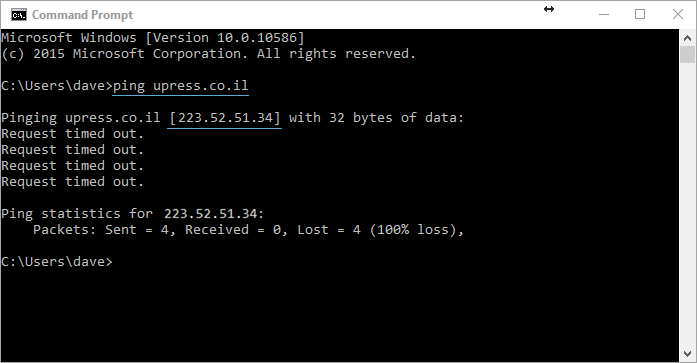
We can see that the site address upress.co.il now points to a new IP address: 223.52.51.34, which means the operation was completed successfully.
A tip worth using: After using the command ipconfig /flushdns, you need to visit the site we are testing from a private browser window with no cache (incognito) to make sure we get all the DNS details anew and do not rely on the DNS details that exist in the current browser.
If you did not manage to perform the action successfully, repeat it several times.
It is important to note: If the DNS change is to take place between ISPs in Israel or worldwide, after DNS server settings were changed by some domain registrar – you must wait until the DNS servers of your personal ISP update the information.
In these cases, refreshing the information on the personal computer will not necessarily help immediately.
If you want to view your site as a "casual visitor" from around the world who has never visited the site before – you can use the service Hide Me, this service lets you visit your site while using a Proxy and thus check whether the site works properly when using different DNS servers (of different internet providers).
