
We often recommend that our customers change the permalink structure in WordPress. This article explains why, and more importantly – how to do it correctly without losing the traffic to the current links that are working right now. The article includes a new plugin that you will need to install. Pleasant reading.
This article explains why, and more importantly – how to do it right without losing the traffic to the current links that are working right now.
The article includes a new plugin that you will need to install. Enjoy the read.
Why change the fixed permalink structure?
In most cases, we recommend that people change their permalink structure, which means get rid of the dates in the permalink structure,
If your content is "evergreen" – the date shouldn't be there.
In our opinion, the only site that must have dates in the permalink structure is a news site. All other sites need, and aspire, to have "evergreen".
A date in the permalink structure can significantly reduce the clicks you get from search engines for older posts that are starting to age.
People simply don't tend to click on a post that is two years old, even if the post answers exactly the result they are looking for.
In addition, Google attaches great importance to your site's ranking on the parameter of "how old is the post?", and the issue gains more importance with every passing day.
We wrote an article about this and that; you can read an article explaining how to decide on a permalink structure in this article.
Performance considerations
In WordPress up to version 3.3, performance is indeed a matter of great significance once you start accumulating many pages
because you are using a permalink structure of just /%postname%/.
Fortunately, this phenomenon was eliminated in WordPress version 3.3. Some people claim that it can be solved by using caching, but WordPress has already solved it, so there are no more excuses – do not use /%postname%/ as your site's permalink structure.
Changing the permalink structure
Changing your site's permalink structure is done in 2 main steps; the first step is through Settings » Permalinks, and choose the option Post ID.
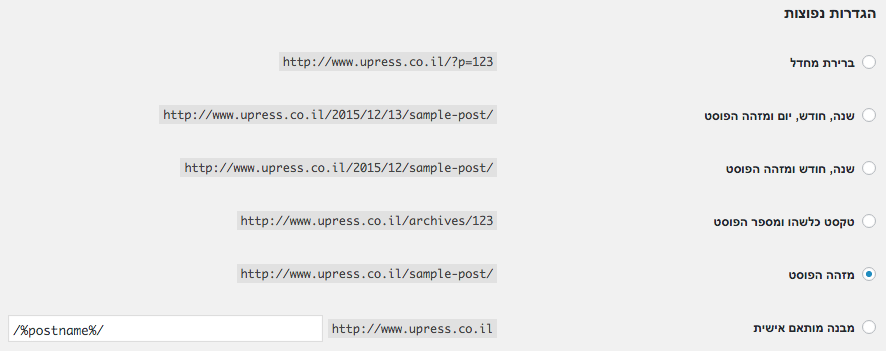 Original Hebrew WordPress interface. Follow the English instructions in this article; labels and positions may differ in newer versions.
If you don't see the Post ID option, you are not yet on version 3.3, and it's time to update.
Nevertheless, if you decide not to, choose the option of custom permalink structure and fill in the text field – /%postname%/.
The second step is to redirect your old links to your new link structure; to do this you will need to add redirects to the file htaccess. .
There are several plugins that perform these redirects for you based on your site URL, your old links, and the new links, such as Redirection.
In this guide we will not be able to expand on this topic; you can read about it in detail in another article.
