How to set up your Inbox account on iOS

Dave Abargel,

There are two ways to set up an email account on your iOS device – automatically or manually.
In this article we will explain the 2 ways, and how to set up the email account you created in the inbox on your mobile device that runs iOS.


Set up your email account automatically

If you use an email provider such as iCloud, Google or Yahoo, you can set up automatically your email account using only your email address and password. In the case of setting up an inbox account the account must be set up manually.

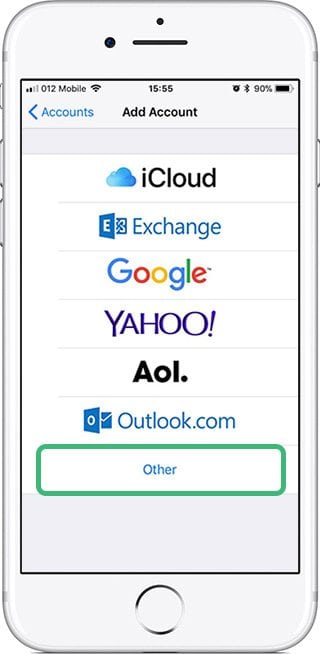
  • Go to Settings > Accounts & Passwords and click Add account. If you are using iOS version 10.3.3 or older, go to Settings > Mail > accounts and click Add account.
  • Choose your email provider. In our case, click Other to add your account manually.


How to set up your Inbox account on iPhone
How to set up your Inbox account on iPhone Setting up your email account manually

First, make sure you know the mailbox settings for your account.
If you are not familiar with them, you can go to the uPress management interface > choose the desired site > tab Emails > Manage inbox account, on this screen you can see all the required details. Then perform the following actions:


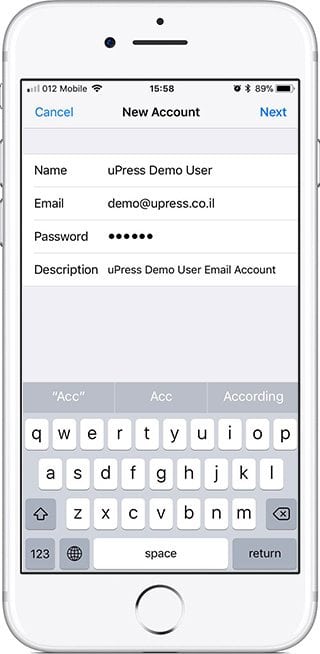
  • Enter the Mailbox \ account name, email address (as it is written in the uPress management interface), The password and a description for your account.
  • Tap on Next.

The app will try to find the email settings and complete the account setup automatically. If the app finds the email settings, tap Finish to complete the account setup.

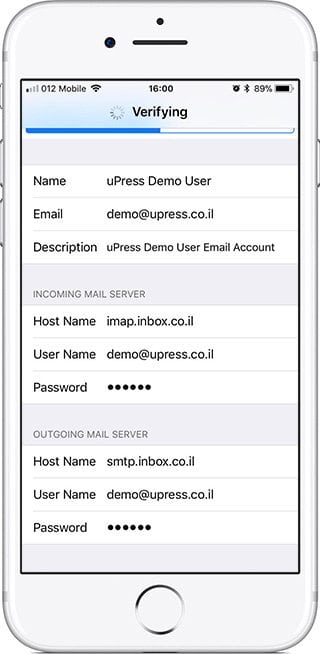
If the app fails to find the email settings, you must enter them manually; tap Next and then perform the following steps:

  • Enter the details for the incoming mail server (imap / pop as shown in the uPress admin interface), email address and password.
  • Enter the details for the outgoing mail server (smtp as shown in the uPress admin interface), email address and password.
  • Then click Next.

If your account settings are correct, tap Save to complete the process. The application will validate all the data, and if the details are incorrect, you will be asked to edit and correct them.


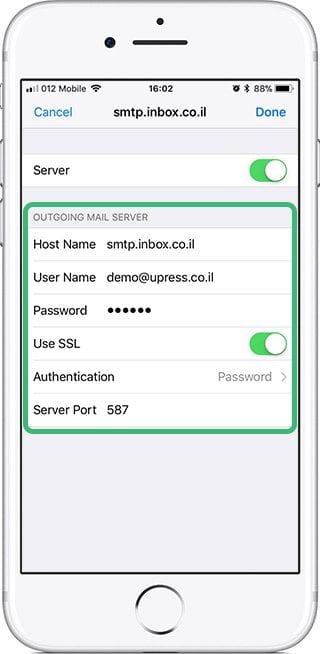
If the email account is still not working properly, try logging in advanced settings (under the main screen of the account settings) and set the incoming and outgoing mail servers on a secure port as follows:
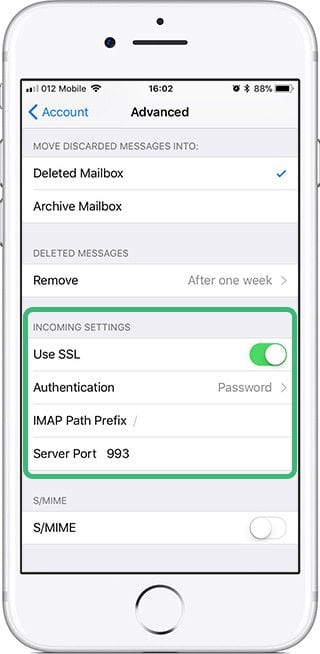
How to set up your Inbox account on iPhone How to set up your Inbox account on iPhone
Dave Abargel

VP and founder of uPress, developer of Backend & Frontend, specializes in improving performance for WordPress websites, handling advanced security issues, and marketing on social networks. He is an active partner in a number of interesting projects in the field, such as WiPi, Enable, Greenicon, Speedom, and more.

  • You might be interested…

  • Your next chapter

    The idea is yours.
    The foundation is ours.

    Give your WordPress website room to grow.